WordPress plugin
Site Offline Pro: Coming Soon and Maintenance Pages
Site Offline Pro lets you prepare a page for visitors while a WordPress site is under construction, being updated, or temporarily offline. Choose a template, configure the content and access options, then review the live preview before enabling Offline mode. Its responsive, retina-ready layouts are designed to work with any WordPress theme.
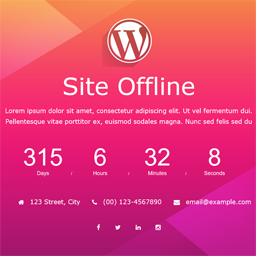
Site Offline Pro lets you prepare a page for visitors while a WordPress site is under construction, being updated, or temporarily offline. Choose a template, configure the content and access options, then review the live preview before enabling Offline mode. Its responsive, retina-ready layouts are designed to work with any WordPress theme.
Configure the page
Choose from eight design templates. Add a logo, background image, colors, contact information, and a countdown for a planned launch or return. Background settings include a slideshow and a YouTube video. The layouts use Bootstrap 3.3.4 and HTML5 with CSS3 animations. You can disable sections you do not need.
Available content includes About Us, Team, Contact Information, Contact Form, Google Map, and Service pages. The plugin lists more than 16 social profile options with drag-and-drop arrangement, as well as more than 500 Google Fonts. It works with translation-ready i18n and cross-browser use.
Newsletters and visitor access
Newsletter options include integrations for Mailchimp, Madmimi, iContact, Constant Contact, Campaign Monitor, and GetResponse. The plugin also includes a subscribers list. Access settings include auto launch, IP access, user access, a landing page option, and full SEO control.
Set up and check offline mode
- Install and activate Site Offline Pro in WordPress.
- Open the plugin settings and select a template or configure the page sections.
- Add the logo, background, countdown, contact details, social profiles, and newsletter settings you need.
- Review the live preview, then enable Site Offline mode with the activation control.
To verify the visitor view, open the site in another browser where you are not logged in. If the offline page does not appear while a cache plugin is active, temporarily deactivate the cache plugin and check again.