WordPress plugin
My Sticky Bar Pro for Sticky Menus and Welcome Bars
On a long WordPress page, a sticky menu or header keeps navigation at the top as visitors scroll. My Sticky Bar Pro also lets you create welcome bars for announcements, promotions, and updates, with messages and show rules managed in one dashboard.
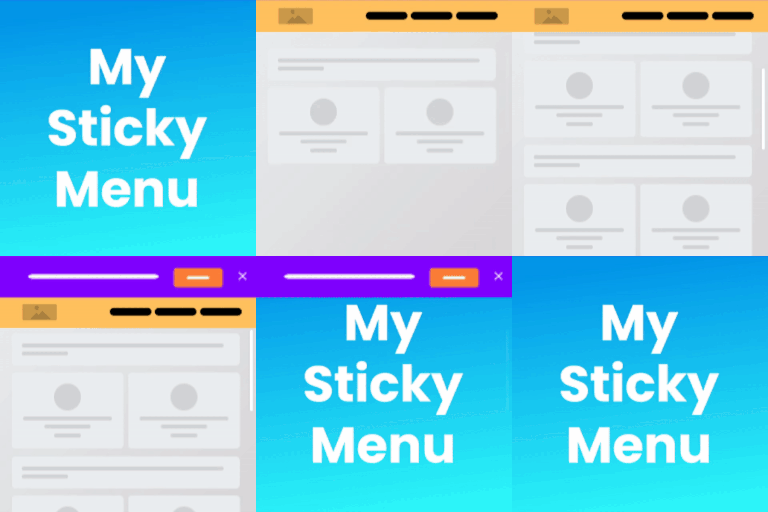
On a long WordPress page, a sticky menu or header keeps navigation at the top as visitors scroll. My Sticky Bar Pro also lets you create welcome bars for announcements, promotions, and updates, with messages and show rules managed in one dashboard.
The extension works with themes and builders including Elementor, Divi, WPBakery, Gutenberg, Visual Composer, and Beaver. Responsive behavior depends on the active theme.
Keep a menu or header visible
Enable the sticky menu feature and identify the element to keep in view by its CSS class or ID. The default sticky class is .navbar. If your theme uses another element, change the class or ID in the plugin settings. Pro controls let you disable the floating menu on desktop or mobile, conceal it while visitors scroll down, and enable or disable the floating header on specific pages. Custom CSS can adjust the appearance of the header and notification bars.
Set where and when welcome bars appear
Create multiple welcome bars and use page targeting rules to show various messages on selected pages. Choose whether a bar appears at the top or bottom, after a scroll or a selected delay, and on mobile, desktop, or both. Country targeting lets you show or hide a bar for visitors in selected countries. For temporary announcements, set an expiry date and time zone.
Choose the message and button action
- Add a countdown using a shared date and time, or start an individual countdown for each visitor when they arrive.
- Use sliding text to rotate through multiple lines in a selected direction.
- Add a discount coupon element and show a thank-you screen after a button click.
- Collect a name and email address or a name and phone number with a contact form. Pro can send email notifications when visitors submit the form.
- Set the button to close the bar, redirect visitors to another URL, or launch a Poptin popup. You can also add a rel attribute to the button.
Configure and review
Install My Sticky Bar Pro, open its dashboard, and configure a sticky menu, notification bar, or welcome bar. Select the position, enter the message and button details, set targeting and display conditions, and adjust the sticky class if your theme requires it. Preview the result, refine its CSS or behavior, then publish.